Annotate anything on your Mac. Temporary by design.
Glassboard lets you scribble over anything on your Mac. Hold a shortcut to draw, release and your ink fades away — perfect for demos, screen shares, and teaching.
Free · Signed & notarized · macOS Tahoe 26 or later
A whiteboard for your whole screen
An annotation layer that's only ever one key press away — and out of your way otherwise.
Hold to draw
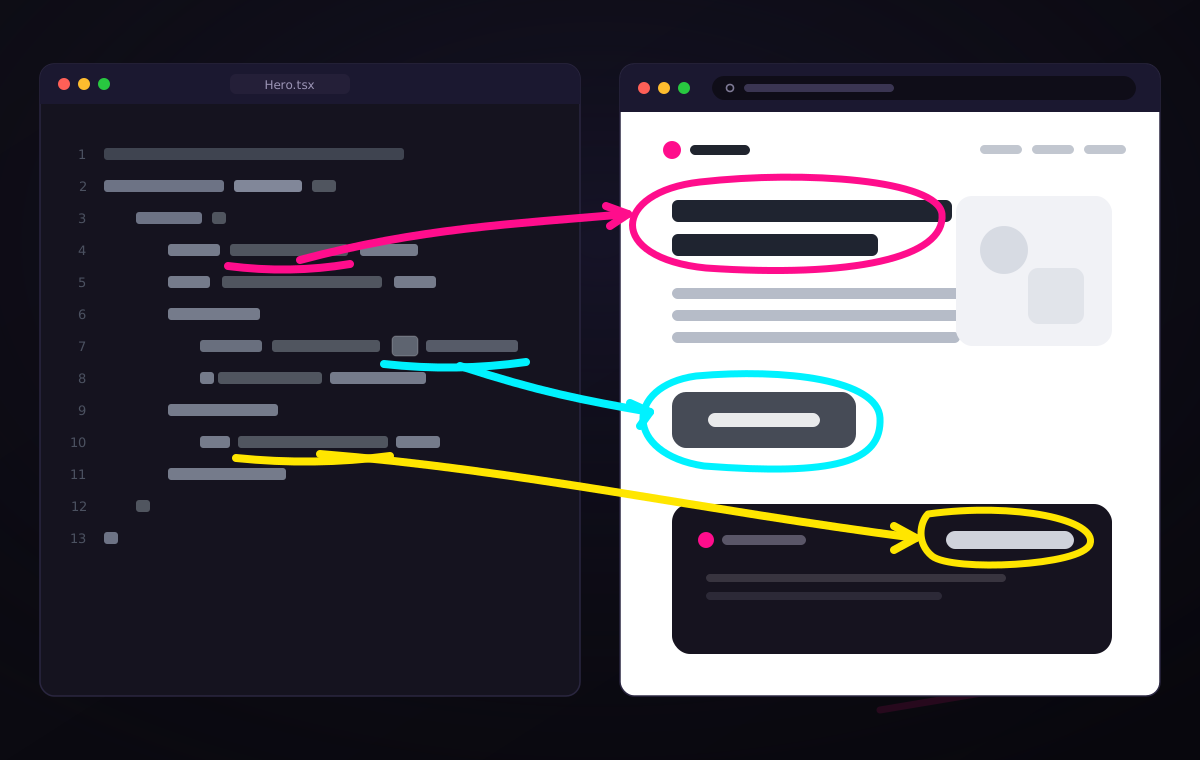
Hold a global shortcut and drag to draw over anything on screen — slides, demos, code, the desktop.
Release, and it fades away
Temporary by design. Your strokes disappear, once you let go.
Five vibrant colors
Pink, lime, yellow, turquoise, and orange — Make your message stand out.
Four expressive tools
Freehand pen, arrow, rectangle, and ellipse, with adjustable thickness.
Ideal for content creators and presenters
Highlight the points you want to get across.
Works everywhere
No app support needed. Just draw over anything you want.
A full-screen canvas, on demand
Glassboard draws on a transparent overlay across apps on every display, without stealing focus from the app underneath. Keep presenting, keep clicking — just hold the shortcut to mark things up.
Quick radial menu for switching colors and tools
Hold right-click to fan out a radial menu right where you're drawing — tools on the left, colors on the right, with a live brush preview in the middle. Hover and release to pick; scroll while it's open to size the brush. No trip to a toolbar.
Keep the GUI out of your way
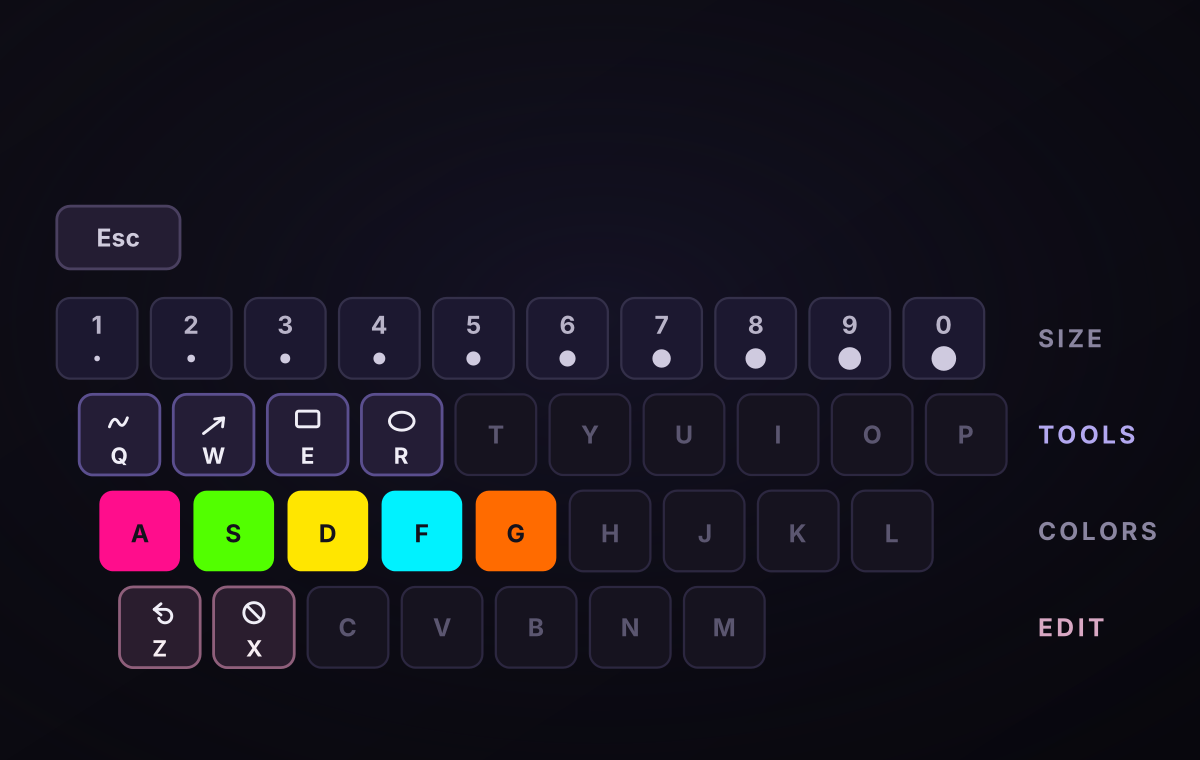
If you don't want any UI to disturb your presentation, the keyboard does it all without a menu. Q W E R picks the tool, the A S D F G home row picks the color, and 1 through 0 sets the thickness from hair-thin to bold. Z undoes your last stroke and X wipes the canvas clean.
Present, draw, move on
Hold ⌃⌥
Strokes appear instantly on a transparent layer. The app underneath keeps focus, so you can keep clicking and presenting.
Mark it up
Drag to draw freehand or using shapes. Hold right-click for the radial menu, or use the keyboard to switch tool and color without breaking stride.
Let go
The ink fades on its own. No undo, no eraser, no "let me clear that" — the screen is clean for your next point.